November 2026 Update — One Question List, Metric Breakdown, and a New Brand Info Screen
Per-question results that were spread across several screens now live in a single question list, and a new Metric Breakdown screen shows where the headline numbers come from. Here is what changed, with before and after screens.
We reorganized the diagnosis and strategy screens you use most. Results for the same question are now in one place, and you can see what is behind each headline number right away.
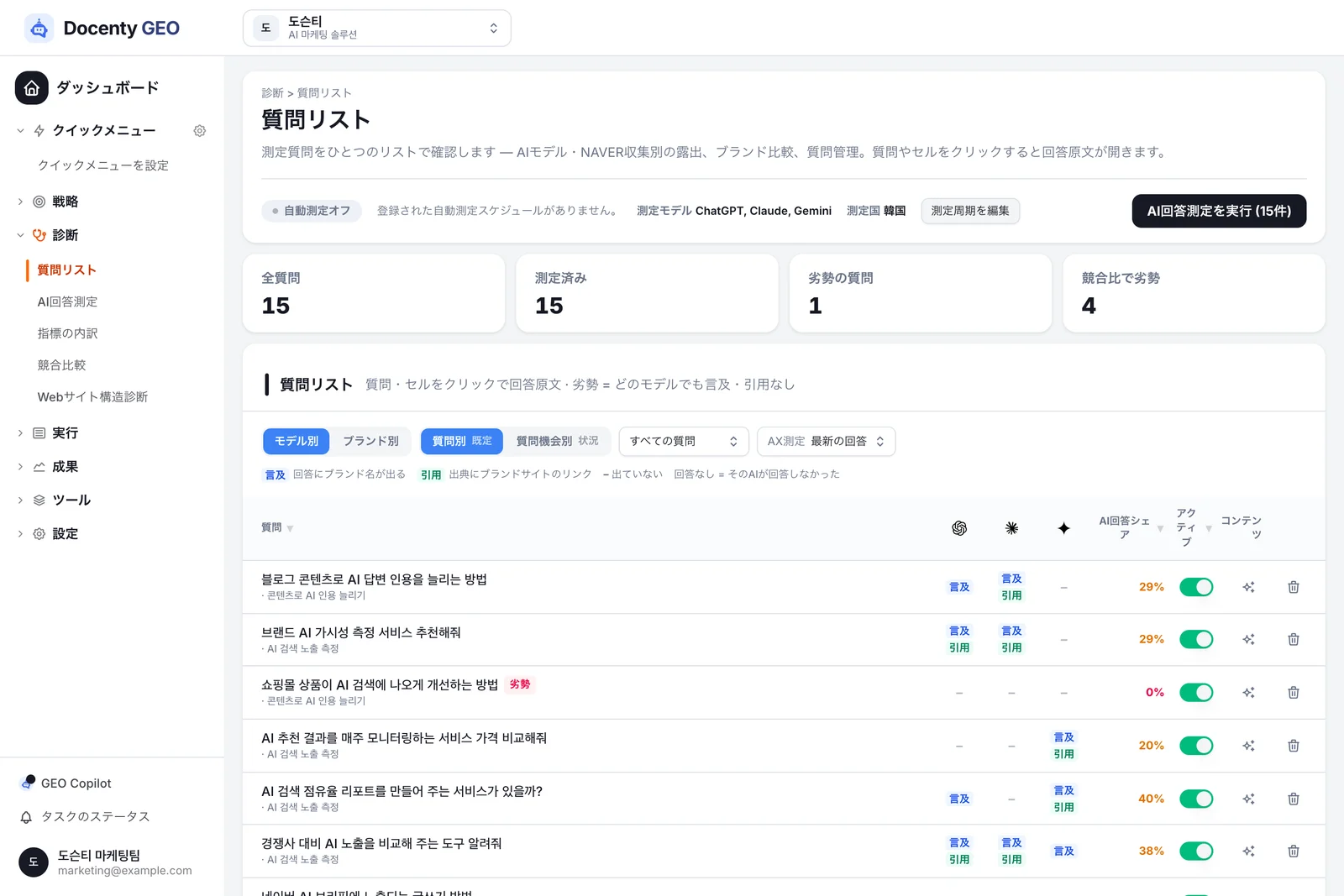
One question list
Per-question results from Question Confirmation, AI Answer Measurement and Competitor Comparison now live in Diagnosis > Question list.
Metric Breakdown (new)
See how mention and citation rates come about, split by AI.
Brand info
Fill in one section at a time from the left menu and save everything from the bar at the bottom.
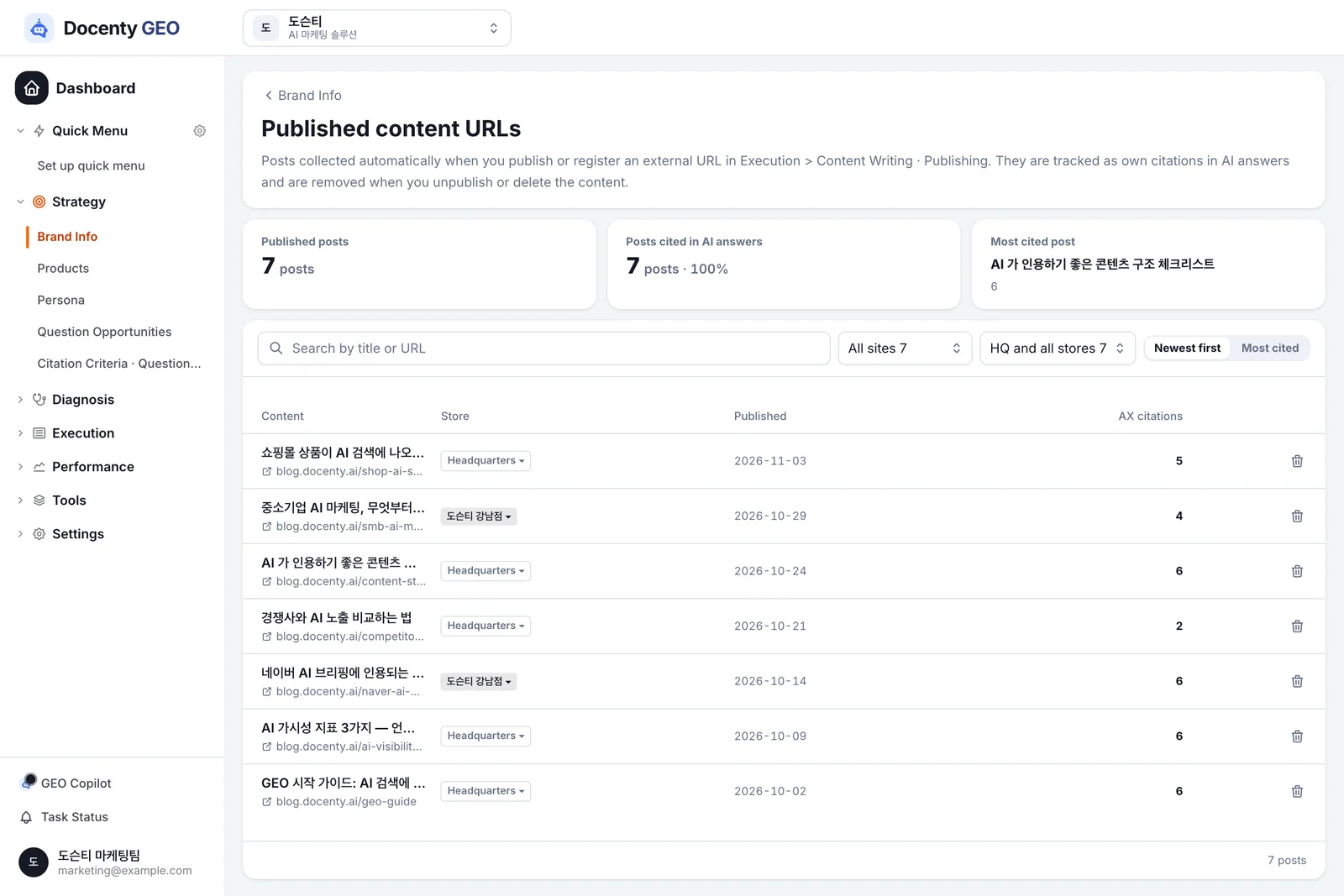
Published content URLs
Your published posts and how often AI cited them, on one screen.
Question list — every question's results in one place
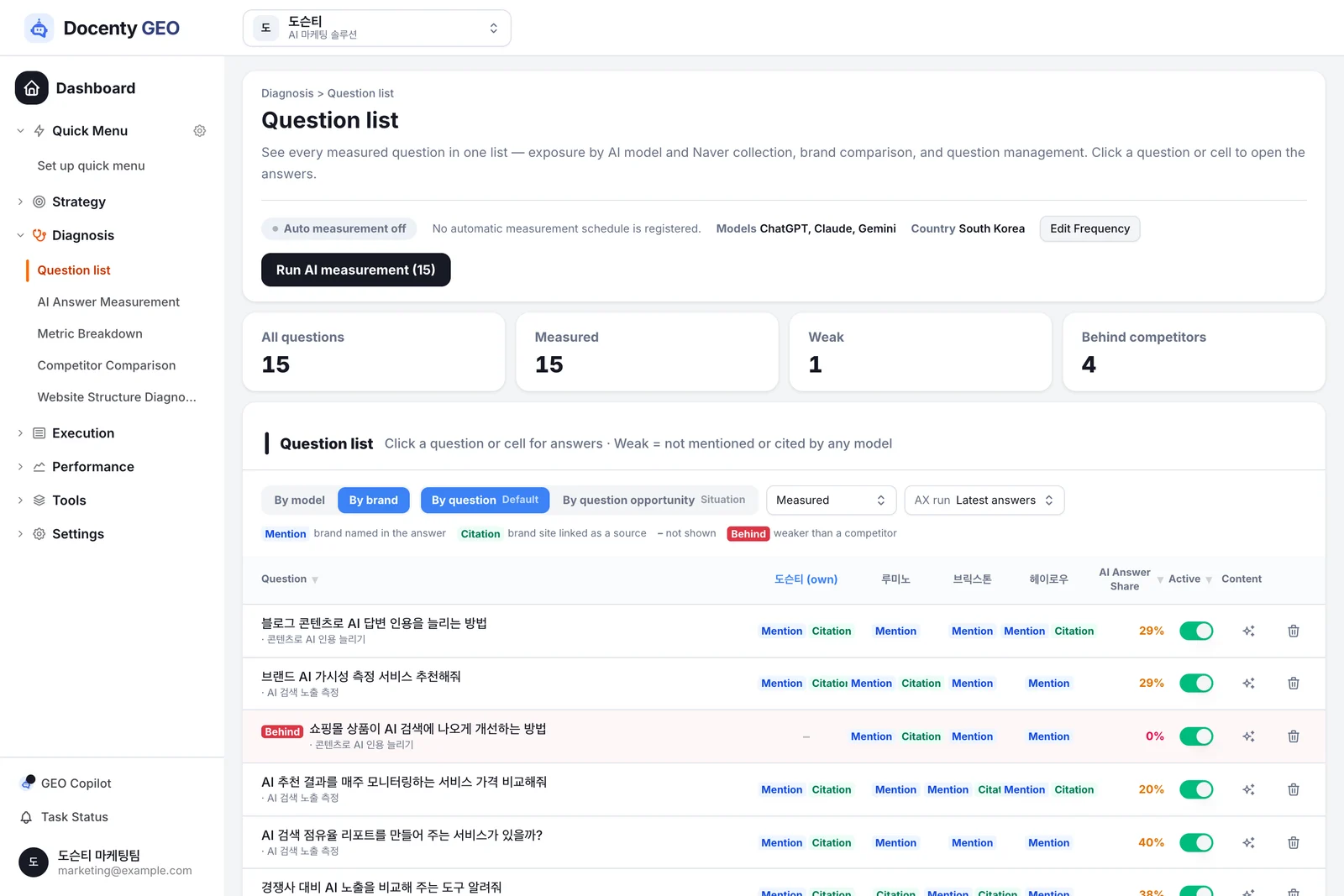
You used to see the same question's results in Question Confirmation, AI Answer Measurement and Competitor Comparison, each in a different layout. Now Diagnosis > Question list shows them all with the same rules.
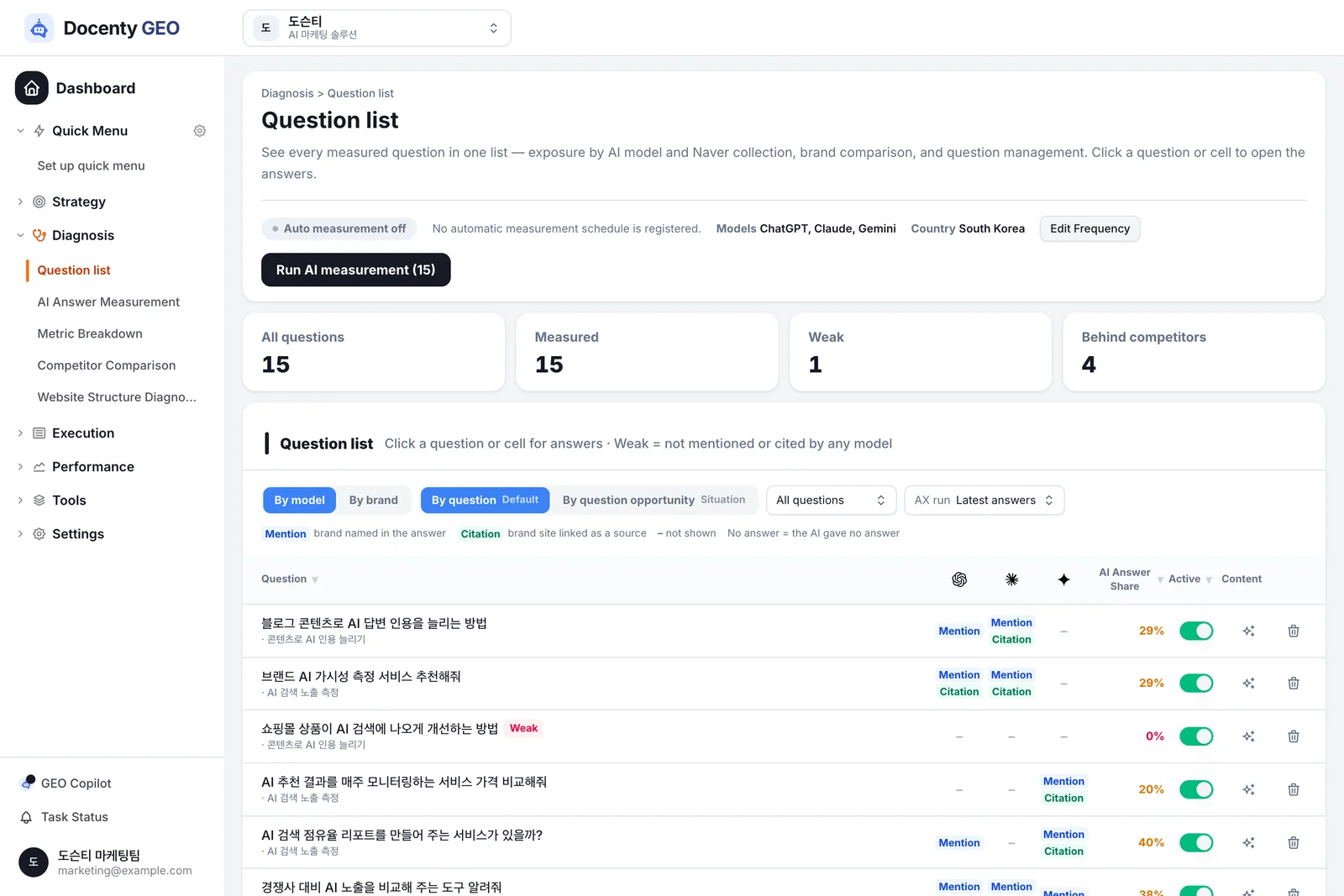
- By model / By brand — by model shows each AI; by brand puts you and your competitors side by side. Questions where a competitor did better are flagged.
- By question / By question opportunity — one question per row, or grouped by topic.
- Pick a measurement run — the latest answers, or any past run.
- Click a cell to open that AI's original answer.
On AI Answer Measurement and Competitor Comparison, this card takes you straight to the question list.

Metric Breakdown — where the numbers come from
Diagnosis > Metric Breakdown is new. For each run, see the mention rate, citation rate, answer share and average rank, and compare AIs side by side.
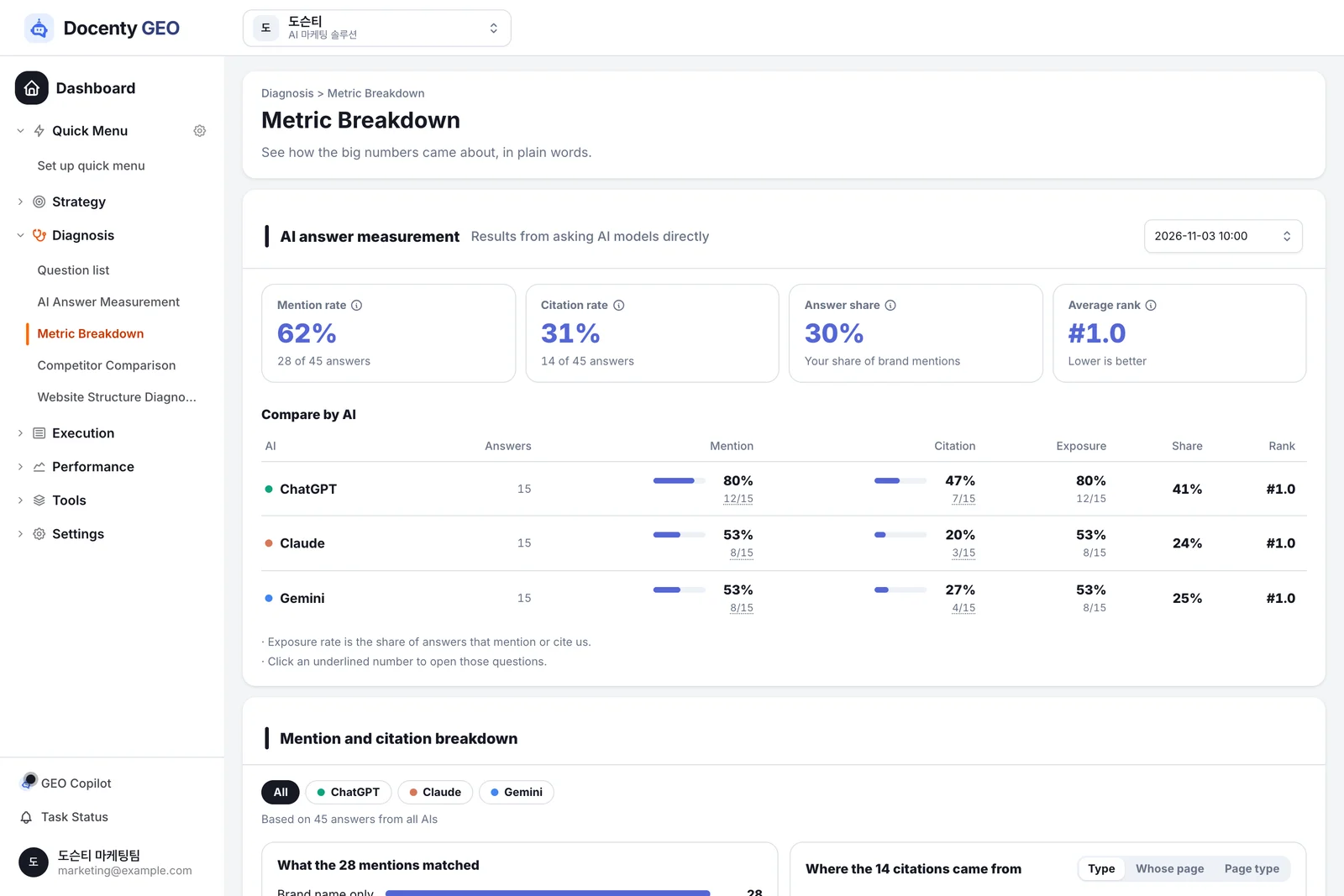
Further down, mentions and citations broken down shows whether a mention came from your brand name or a product name, and which pages the citations came from.
Brand info — one section at a time, one save
The long single page is now a left-hand menu and one section at a time.
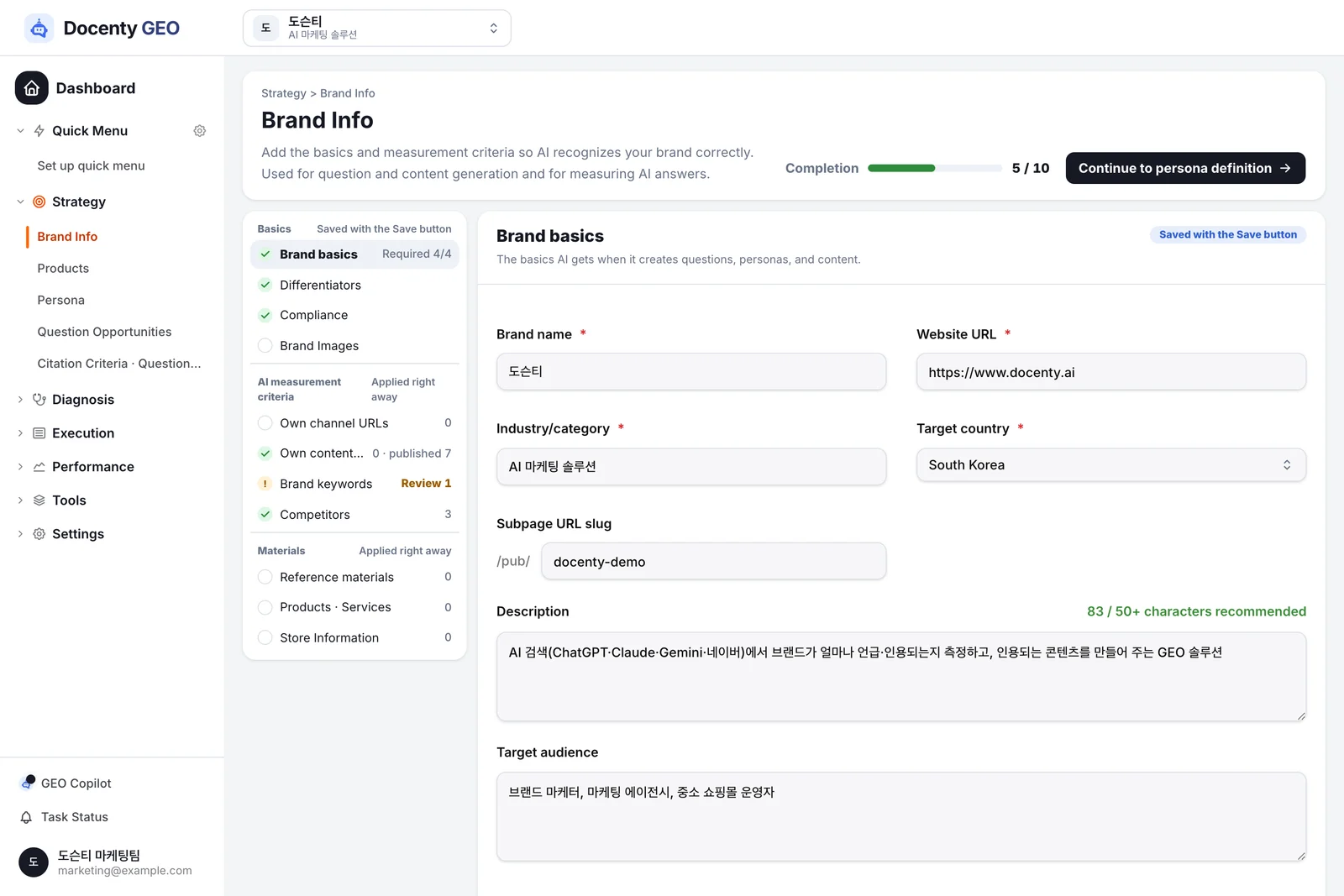
- Basics (brand basics, differentiators, compliance, image) are saved together from the bar at the bottom, which shows how many items changed and lets you undo.
- AI measurement settings (owned channels, content URLs, brand keywords, competitors) and materials apply as soon as you change them.
Published content URLs — your published posts, gathered
Posts you published from Content Writing & Publishing now have their own screen.
English and Japanese
You can switch the interface to English or Japanese. Menus, buttons and help text all change.
Also new
- AI models your organization does not use no longer appear. When a model is turned off, it disappears from columns, icons and totals from then on; runs measured before that still show it.
- Dropdown menus now open right below their button instead of covering it.
- Accounts that use NAVER AI collection see NAVER results in the same question list and Metric Breakdown.
Questions? Ask GEO Copilot at the bottom left of the screen, or contact your account manager.